If you have ever set up an IPTV service and been asked to “enter the portal URL,” you may have stared at the screen wondering exactly what that means. You are not alone. The term sounds technical, but the concept is surprisingly straightforward — and understanding it fully can make your entire streaming experience much smoother.
The global IPTV market is projected to surpass $115 billion by 2026, driven by the growing demand for flexible, internet-based TV services.
What Is a Portal URL in IPTV?
A portal URL in IPTV is essentially the web address that connects your streaming device or app to a service provider’s server. Think of it as the digital front door through which your device retrieves channel lists, electronic program guides (EPG), on-demand content, and other streaming data.
The term “portal” refers to an online gateway — a centralized location managed by an IPTV provider — that stores and delivers all the content accessible through your subscription. When you enter a portal URL into your IPTV player or set-top box, you are pointing your device at that gateway and essentially telling it: “This is where my content lives.”
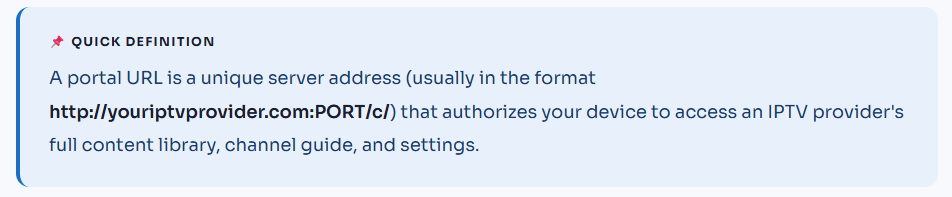
Unlike a simple web page address you’d visit in a browser, an IPTV portal URL is specifically designed to communicate with compatible IPTV applications and hardware using the Stalker Middleware protocol or similar standards. The URL is paired with a device’s unique MAC address to verify your subscription.
How Does a Portal URL Work?
The mechanics behind a portal URL involve a handshake between three core components: your device, your IPTV app or player, and the provider’s server.
You Enter the Portal URL
Once you install an IPTV player on your device (smart TV, Android box, smartphone, etc.), you navigate to the portal or server settings section and type in the URL supplied by your provider.
Your Device Sends Its MAC Address
Automatically, the app transmits your device’s MAC address (a unique hardware identifier) to the server. This is how the provider verifies your subscription without requiring a separate username and password in MAC-based setups.
The Server Authenticates and Responds
The provider’s server checks whether the MAC address is registered to an active subscription. If it is, the server sends back your personalized channel list, EPG data, and content library.
Content Is Streamed to You
Once authenticated, live TV channels, video on demand, and catch-up content are all accessible through the interface loaded from the portal. The stream is delivered in real time over your internet connection.
This entire process typically happens within a few seconds. Every time you launch your IPTV app, it checks in with the portal URL to confirm your subscription is still active and to refresh your channel list.
What Does a Portal URL Look Like?
Portal URLs follow a specific structure that differs slightly from standard website addresses. Here are the key components:
Protocol
Usually http:// or https://. Some providers use encrypted (HTTPS) connections for added security.
Domain or IP Address
This is the provider’s server address, for example: myiptv.example.com or a raw IP like 192.168.1.1.
Port Number
A numerical value (e.g., :8080) telling your app which network channel on the server to communicate through.
Path
A trailing path like /c/ or /stalker_portal/c/ directs the app to the correct portal interface on the server.
A complete example of what a portal URL might look like is: http://example-provider.com:8080/c/.
Your provider will supply you with the exact address — you should never have to guess it or build it yourself.
Portal URL vs. M3U Playlist: What Is the Difference?
Many newcomers to IPTV confuse portal URLs with M3U playlists. While both serve the purpose of connecting you to content, they work in fundamentally different ways.
| Feature | Portal URL | M3U Playlist |
| Format | A server address (URL) | A playlist file (.m3u or .m3u8) |
| Authentication | Uses MAC address of the device | Uses username & password |
| Channel Updates | Automatically synced from the server | Requires a new playlist file or refresh |
| EPG Support | Built-in, loaded from the portal | Requires a separate EPG URL |
| Supported Devices | MAG boxes, certain Android apps, smart TVs | Almost all IPTV players and apps |
| Best For | Dedicated IPTV hardware and supported apps | Flexible use across many apps and platforms |
In short, a portal URL is a dynamic, managed connection — the provider controls updates on their end and they push to your device automatically. An M3U playlist is more like a static file that lists stream addresses directly and must be periodically refreshed.
What Devices Support Portal URLs?
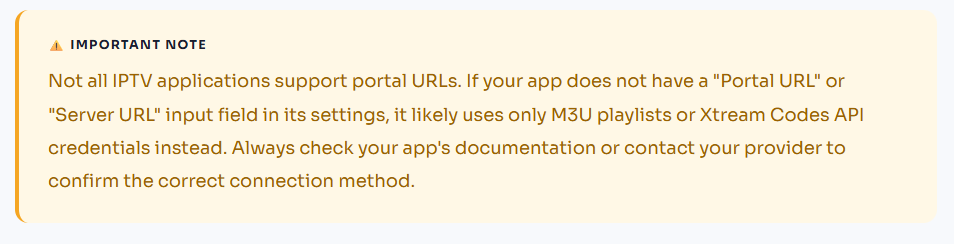
Not every device or app supports the portal URL method. This connection type is most commonly used with hardware and software that implements the Stalker Middleware standard or a compatible proprietary system.
- MAG Set-Top Boxes— The original and most well-known devices built specifically around the portal URL / Stalker Middleware system.
- IPTV-Specific Android Apps— Certain Android-based IPTV applications include a dedicated “Portal” or “STB Emulator” mode that accepts a portal URL.
- Smart TVs with IPTV Players— Some smart TV operating systems (including Android TV and certain proprietary platforms) have apps that support portal connections.
- Amazon Fire TV & Stick— Compatible third-party IPTV apps on Fire TV can accept portal URLs when they include an STB emulator mode.
- Windows & Mac Software— A handful of desktop IPTV players also support the portal URL entry method.
How to Find Your Portal URL
Your portal URL is provided exclusively by your IPTV service provider. You cannot create or find one on your own — it is tied to the provider’s server infrastructure and your specific subscription. Here is how you typically receive it:
1. Welcome Email from Your Provider
After subscribing, most providers send an email containing your portal URL along with any other connection details (like your MAC address or credentials). This is the most reliable source.
2. Provider’s Customer Portal or Dashboard
Many IPTV services have a customer-facing website where you can log in and retrieve your connection information, including the portal URL for compatible devices.
3. Direct Communication
If you purchased through a reseller or support channel, the URL may have been shared via a direct message, ticket system, or chat during the onboarding process.
How to Enter a Portal URL on Your Device
The exact steps vary depending on your device and app, but the general process follows a similar pattern across most platforms.
Open Your IPTV App or Set-Top Box Interface
Launch the IPTV player or navigate to the setup screen on your MAG box or Android device.
Go to Settings or Configuration
Look for a menu labeled “Settings,” “Server,” “Portal,” or “Configuration.” This is typically accessible from the main screen or by pressing a dedicated button on your remote.
Locate the Portal or Server URL Field
Inside the settings, find the input field labeled “Portal URL,” “Server URL,” or “Portal 1.” This is where you will enter the address.
Enter the URL Provided by Your Service
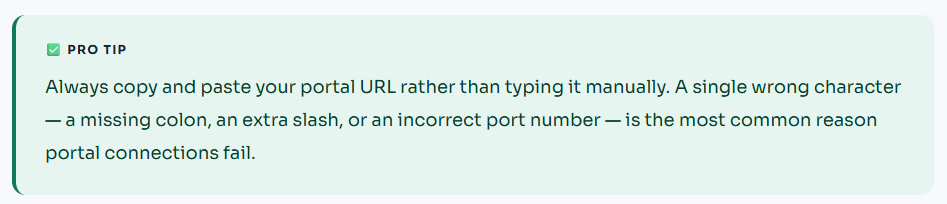
Type or paste the exact portal URL your provider gave you. Double-check every character, including the port number and trailing slash if applicable.
Save and Restart
Save your settings and restart the app or device. It will connect to the server, verify your MAC address, and load your channel list automatically.
How to Change Your Portal URL
Providers occasionally migrate their servers, which means your old portal URL stops working. When that happens — or if you switch to a new provider — you’ll need to replace the URL in your app’s settings. The good news: changing the portal URL doesn’t touch your subscription, playlists, or favorites. It only updates the server address your device connects to.
- Open your IPTV app and go to Settings (or Server/Portal settings on a MAG box).
- Find the field labeled Portal URL or Server URL — this is where your current address is stored.
- Delete the old URL completely.
- Type the new portal URL exactly as your provider gave it, including the port number (e.g., :8080) and any trailing slash. Even a single wrong character will prevent connection.
- Save the changes and restart the app or device. It will connect to the new server and load your channels.
You can find your new portal URL in your provider’s welcome email, in their customer dashboard, or by asking their support team. If the new URL doesn’t work immediately, double-check for typos — especially the port number and trailing characters.
Common Portal URL Problems and How to Fix Them
Even when everything appears to be set up correctly, portal connections can sometimes fail. Here are the most common issues and what to do about them:
Portal URL Not Working
If the portal URL returns an error or refuses to connect, the most likely culprits are a typo in the URL, an unregistered MAC address, or a temporary server outage. Start by verifying every character of the URL, then contact your provider to confirm your MAC address is registered.
No Channels Loading After Connection
This usually means the server recognized your device but found no active subscription associated with your MAC address. Verify with your provider that your plan is active and that the correct MAC address has been added to your account.
Buffering or Poor Stream Quality
While this is not directly caused by the portal URL itself, a slow internet connection or a congested server can affect stream quality. A minimum of 25 Mbps is recommended for HD streaming, and a wired ethernet connection is preferable over Wi-Fi for stable performance.
Portal URL Stopped Working Suddenly
This can happen when a provider changes or migrates their server. Your provider should notify you of any URL changes, but if your portal stops working unexpectedly, contact support to get the updated address.
Why the Portal URL Matters for Your IPTV Experience
The portal URL is more than just a technical formality — it is the foundation of your IPTV connection. A stable, reliable portal URL from a trustworthy provider translates directly into a better streaming experience. Here is what a well-managed portal delivers:
Automatic Updates
New channels and content additions appear automatically without any manual updates on your end.
Integrated EPG
Electronic program guide data loads directly from the portal, giving you a full TV guide experience.
Secure Access
MAC-based authentication means only registered devices on your plan can access the content.
Faster Load Times
A well-optimized server behind a portal URL delivers content faster and with fewer interruptions.
Experience Reliable IPTV With IPTV Smarter Pros
At IPTV Smarter Pros, we make premium IPTV simple, stable, and accessible for everyone — whether you’re a first-time streamer or upgrading from a frustrating service.
- 85,000+ Live Channels: Sports, news, entertainment, and international channels all in one place.
- Massive VOD Library: Thousands of movies and TV series available on demand, updated regularly.
- All Major Devices Supported: Works on MAG boxes, Android TV, Fire Stick, smart TVs, smartphones, and more.
- 99.9% Uptime Servers: High-performance infrastructure so your portal never goes dark unexpectedly.
- Full Setup Assistance: We walk you through entering your portal URL and configuring your device from start to finish.
- 24/7 Customer Support: Real help from real people whenever you need it — no bots, no long waits.
No commitment required — book a call and our team will help you find the right plan and get set up in minutes.
Conclusion
Getting started with IPTV doesn’t have to be complicated. Once you understand the basics—choosing a reliable provider, using the right app, and setting up your Portal URL or M3U playlist—you can unlock a more flexible and cost-effective way to watch TV.
Whether you’re interested in live channels, sports, or on-demand content, IPTV gives you full control over what and how you watch. Take your time to test different apps, ensure your connection is stable, and always choose a trustworthy service. With the right setup, you’ll be streaming smoothly in no time. Grab a free trial to experience it yourself.
FAQs
Can I use the same portal URL on multiple devices simultaneously?
It depends on your subscription plan. Portal URL connections are tied to the MAC address of each device, which means every device that wants to stream simultaneously needs to be registered under your account. Most providers offer multi-connection plans (e.g., 2-connection or 5-connection packages) that allow multiple MAC addresses to be active at the same time. Using a single connection on multiple devices simultaneously without the appropriate plan typically results in one device being blocked or kicked off the stream.
Is it possible to change my portal URL without contacting my provider?
No. The portal URL is a server address that belongs entirely to your IPTV provider — you cannot create or modify it yourself. If you want to switch providers, you would need to get a new portal URL from the new service. If your current provider has changed their server address, they must give you the updated URL. There is no way to self-generate or reconstruct a portal URL independently.
Does a VPN affect my portal URL connection?
Yes, using a VPN can affect your IPTV portal connection in several ways. Some providers block VPN IP addresses at the server level, which can prevent your portal from connecting at all. VPNs can also introduce extra latency that leads to buffering, especially on lower-bandwidth VPN servers. Additionally, some geo-restricted content within the portal may become inaccessible (or become accessible) depending on which VPN server location you choose. If you must use a VPN, select a server that is geographically close to the IPTV server’s location for best performance.
What is the difference between a portal URL and an Xtream Codes API connection?
These are two different protocols for accessing IPTV content. A portal URL typically uses the Stalker Middleware system and authenticates through your device’s MAC address — no separate username or password is needed. An Xtream Codes API connection, on the other hand, uses a server URL along with a separate username and password, and does not rely on MAC addresses. Xtream Codes is compatible with a broader range of apps and platforms. Your provider will specify which method your account uses; some providers support both, allowing you to choose based on your preferred app.
Will changing my router or internet provider reset my portal URL setup?
Changing your internet provider or router should not affect your portal URL setup, because portal URL authentication is based on your device’s MAC address — not your IP address or network details. Your streaming device’s MAC address stays the same regardless of which internet connection it uses. The only exception is if your new internet connection uses strict firewall rules that block the specific port used by your portal URL (such as port 8080). If that happens, you may need to adjust your router’s firewall settings or ask your IPTV provider if they offer an alternative port.
Can I access my portal URL content while traveling abroad?
In most cases, yes. Because the portal URL connects to a remote server over the internet, you can access your content from any country as long as your device has an internet connection. However, there are some exceptions: some providers geo-restrict certain channels within the portal to specific regions due to broadcasting rights. Additionally, your connection quality may vary depending on the distance between you and the provider’s server and the speed of local internet infrastructure. If you encounter connectivity issues abroad, a VPN server in your home country can sometimes help re-establish a stable connection.
How often do I need to re-enter my portal URL?
Under normal circumstances, you only need to enter your portal URL once during the initial setup. The app or device saves the address and reconnects automatically every time you launch it. You would only need to re-enter it if: you reset your device to factory settings, you install the IPTV app on a new device, your provider migrates to a new server and issues you an updated URL, or you accidentally delete or overwrite the saved settings. It is a good practice to save your portal URL somewhere secure (such as a notes app) so you have easy access to it if it ever needs to be re-entered.