To install IPTV on a Smart TV, the steps depend on your TV’s system. On Android TV, download IPTV Smarters Pro or TiviMate straight from the Google Play Store. On Samsung (Tizen) and LG (webOS), install the Smart IPTV app from your TV’s app store, note the MAC address it shows, then activate your playlist on the app’s website and log in with your provider details. Every method takes under fifteen minutes. The guides below cover each TV type step by step.
One honest note before you start. Unlike Firestick, Samsung and LG TVs do not let you install every IPTV player. You work with the apps their stores allow. The good news is the apps they do allow work perfectly well once set up.
What You Need Before You Start
Your IPTV subscription details from your provider: either Xtream Codes login (server URL, username, password) or an M3U playlist link. Your TV connected to Wi-Fi. And a phone or laptop nearby, because Samsung and LG activation happens partly on the app’s website. If you have not chosen a player yet, our general IPTV setup guide explains the options.
Android TV: The Easiest Method
Sony, Philips, TCL, and Xiaomi TVs running Android TV have it easiest. Open the Google Play Store on your TV, search for IPTV Smarters Pro, and install it. Open the app, choose “Login with Xtream Codes API,” and enter your server URL, username, and password. Your channels load in a few minutes. Prefer TiviMate? It is also in the Play Store and sets up the same way. Android TV owners can skip the rest of this guide.
Samsung TV (Tizen): Using the Smart IPTV App
Open the Samsung App Store on your TV and search for “Smart IPTV.” Install it and open it. The app will show your TV’s MAC address on screen. Write it down exactly.
Now on your phone or laptop, go to the Smart IPTV website’s playlist upload page. Enter your MAC address and paste your M3U playlist link, then upload. Restart the Smart IPTV app on your TV and your channels will appear. One honest cost to know: Smart IPTV charges a small one-time activation fee per TV after a short trial period. This goes to the app maker, not your IPTV provider, and it is normal.
LG TV (webOS): Same Idea, Different Store
Open the LG Content Store, search for “Smart IPTV,” and install it. The setup is identical to Samsung: note the MAC address shown in the app, upload your M3U link against that MAC on the Smart IPTV website, then restart the app. Some LG models also offer IPTV Smarters in the Content Store, which accepts Xtream Codes login directly and skips the website step. If you see it on your model, use it.
Setting Up the TV Guide (EPG)
On Android TV apps with Xtream Codes login, the guide loads automatically. On Smart IPTV (Samsung and LG), the guide comes from your M3U playlist if your provider includes EPG data in it. Most good providers do. If the guide is empty, check your TV’s timezone setting first, then ask your provider whether their M3U includes EPG. Wrong program times almost always mean the timezone, not the playlist.
The Right Subscription for Your Smart TV
App installed? Now you need a subscription with a proper M3U link and working EPG. Try ours free and load it straight into your TV.
Smart TV vs Firestick: Which Is Better for IPTV?
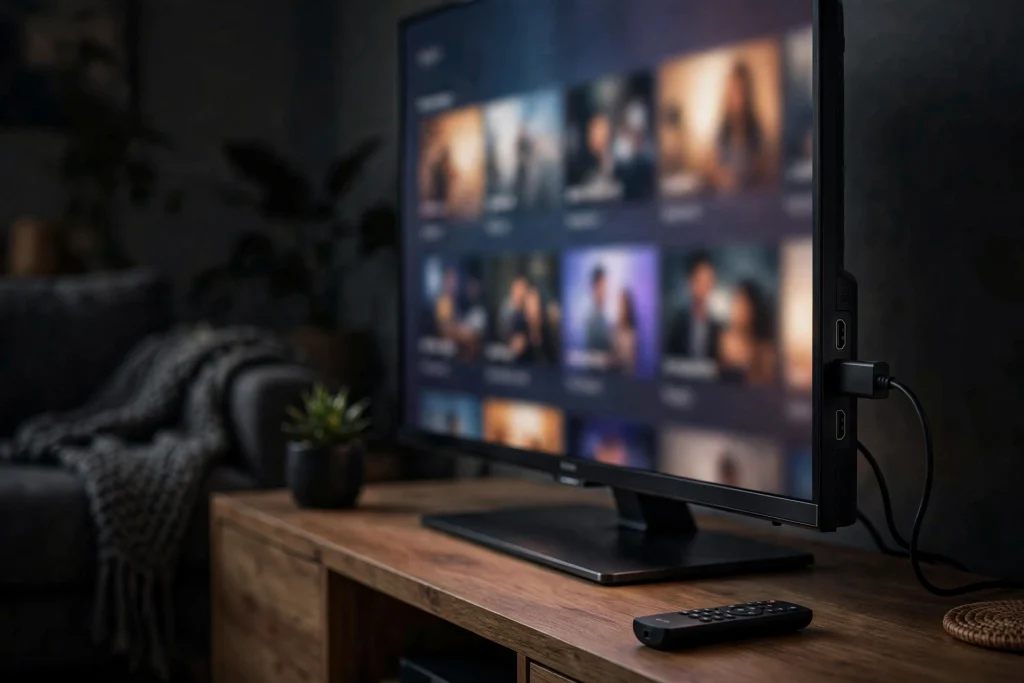
Honest answer: a Firestick is usually the better IPTV device. It runs more player apps, updates faster, and handles streams more smoothly than most built-in TV software. If your Smart TV apps feel slow or limited, a Firestick plugged into the HDMI port solves it for little money. Our Firestick setup guide takes ten minutes. That said, if your TV’s apps run fine, there is no need to buy anything extra.
When Something Goes Wrong
Channels will not load after uploading the playlist? You probably mistyped the MAC address on the website. Delete it and enter it again carefully. App asks for payment? That is the Smart IPTV activation fee, a one-time charge from the app maker. Guide empty? Check the TV timezone. Everything else, buffering, crashes, login failures, is covered in our IPTV troubleshooting guide.
Frequently Asked Questions
What is the best IPTV app for Samsung Smart TV?
Smart IPTV is the most widely used on Samsung Tizen TVs and the simplest to set up with an M3U link. If your model offers IPTV Smarters in the app store, that is also excellent and accepts Xtream Codes directly.
Can I install TiviMate on Samsung or LG TV?
No. TiviMate is Android-only, so it works on Android TV and Firestick but not on Samsung Tizen or LG webOS. Samsung and LG owners should use Smart IPTV or IPTV Smarters where available.
Why is Smart IPTV asking me to pay?
Smart IPTV charges a small one-time activation fee per TV after its trial period. This is legitimate and goes to the app developer. Your IPTV subscription is separate and is paid to your provider.
Do I need a Firestick if I have a Smart TV?
Not necessarily. If your TV’s IPTV app runs smoothly, you are fine. A Firestick is worth it if your TV feels slow, lacks the apps you want, or struggles with streams.
Can I use one subscription on my TV and phone?
Usually yes, but check your provider’s connection limit. Most subscriptions allow one or two simultaneous connections. Ask before buying if you plan to watch on multiple screens at once.
Pick your TV type above, follow the steps, and your Smart TV will be running IPTV before your tea goes cold. Grab a free trial and start watching tonight.
Fill Your Smart TV With Channels Tonight
85,000+ channels with a working TV guide, ready for Samsung, LG and Android TV. Free trial, no card.