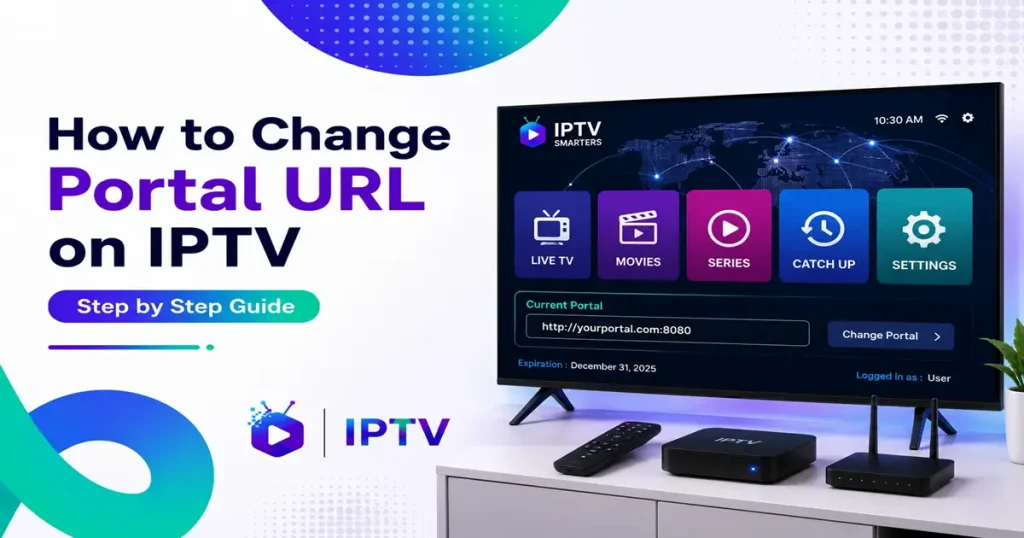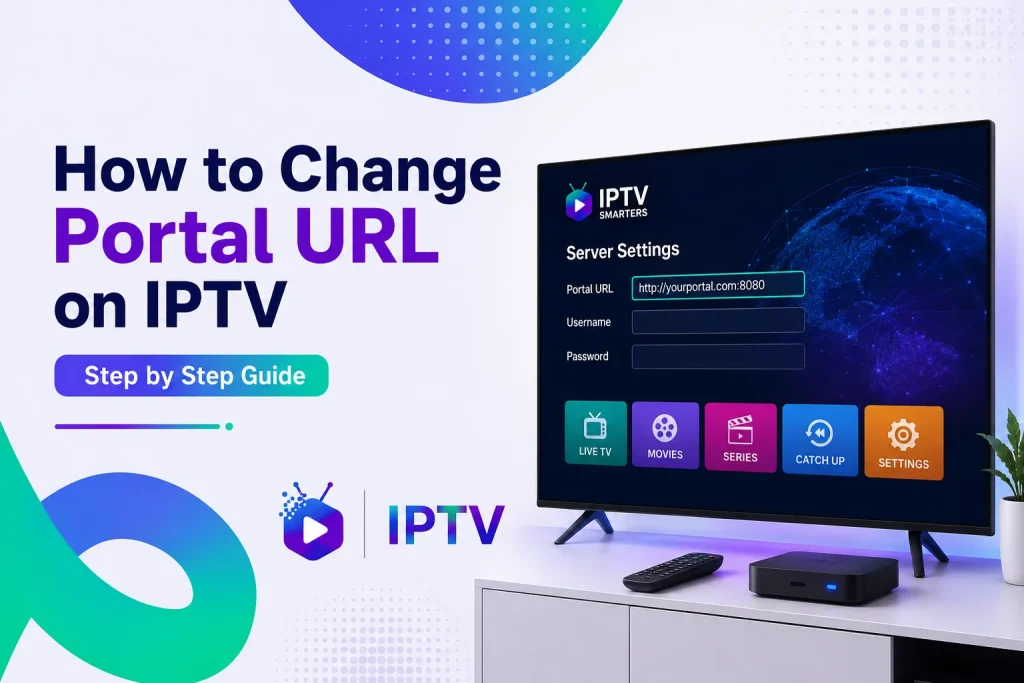
If you have ever had to switch IPTV providers, or your current provider moved to a new server, you have probably run into one small but important task: changing your portal URL. It sounds scary if you have never done it before, but it really is not.
We already covered what a portal URL in IPTV actually is in an earlier guide, so this one picks up where that left off. Here we will walk through how to find your portal URL, how to change it safely, and what to do if something goes wrong along the way.
IPTV is not a niche thing anymore either. Subscriber numbers have grown so fast that IPTV is now expected to pass cable TV subscriptions worldwide for the first time, according to recent industry data. More people switching means more people asking the same question you are asking right now, so you are in good company.
A Quick Refresher on What a Portal URL Does
Before jumping into the how to part, here is a fast recap for anyone who skipped the first guide. A portal URL is the web address your IPTV app or device uses to connect to your provider’s server. It is what pulls in your channel list, your program guide, and all your on demand content. Your device is matched to your subscription through its MAC address, so once the portal URL is entered correctly, everything else loads on its own.
If you want the full breakdown of how this works behind the scenes, our guide on what IPTV is and how the whole system fits together is worth a read too.
Why You Might Need to Change Your Portal URL
There are a handful of common reasons people need to update this setting, and none of them are unusual:
- Your provider moved servers. IPTV providers sometimes migrate to new infrastructure for speed or reliability reasons, and this often comes with a new portal address.
- You switched providers. A new IPTV service means a completely new portal URL, since it is tied to that provider’s own server.
- You typed it in wrong the first time. It happens more than you would think. One missing character and the connection just will not go through.
- You are setting up a new device. If you bought a new box or reinstalled your app, you will need to re-enter the portal URL from scratch.
Whatever the reason, the process to fix it is basically the same each time.
How to Find Portal URL for IPTV
Before you can change anything, you need the correct new address in hand. Here is where that usually comes from.
Check Your Welcome Email
Most providers send a welcome or confirmation email right after you sign up. This email almost always has your portal URL listed along with your MAC address and any login details. It is the first place to look, and honestly the most reliable one.
Log Into Your Provider’s Customer Panel
Many services give you access to a member dashboard where you can see your active subscription details, including your portal address. If your provider offers this, it is usually the fastest way to grab the exact URL without waiting on a reply from anyone.
Contact Support Directly
If you cannot find it in your email or an online account, just reach out to your provider’s support team. A quick message is usually all it takes, and a good provider will send it over within minutes.
Look at Your Old App Settings
If you are just reinstalling the same service on a new device and did not lose your subscription, check whether your old app or device still has the URL saved somewhere in its settings. It can save you a step if it is still there.
One thing worth repeating: you cannot make up or guess a portal URL. It belongs to your provider’s server, so it always has to come from them.
How to Change Portal URL on IPTV
Once you have the correct new address, updating it takes just a couple of minutes. The exact menu names can vary a little between apps and devices, but the steps follow the same basic pattern everywhere.
Open Your IPTV App or Device Settings
Start by opening your IPTV player app, or the main menu if you are using a MAG box or similar set top box.
Find the Portal or Server Settings
Look for an option called “Settings,” “Server,” “Portal,” or sometimes “Portal 1” and “Portal 2” if the app supports multiple connections. This is usually somewhere near the top of the settings menu.
Delete the Old Portal URL
Clear out whatever address is currently saved there. Do not just add the new one on top of the old text, since that can cause errors or a failed connection.
Type in the New Portal URL Carefully
Enter the new address exactly as your provider gave it to you. Pay close attention to the port number and the trailing slash if there is one, since a small typo is the most common reason a portal URL fails to connect.
Save the Settings and Restart
Save your changes, then close and reopen the app, or restart your device completely. This forces it to reconnect to the new server and pull your updated channel list and guide data.
That is really the whole process. Once it reconnects, everything should load the same way it did before, just from the new server.
Common Mistakes to Avoid When Changing a Portal URL
A few small slip ups cause most of the problems people run into, so it is worth double checking these before you assume something bigger is wrong:
- Leaving an extra space before or after the URL
- Mixing up http and https
- Missing the port number, like :8080
- Forgetting the trailing slash if your provider’s URL includes one
- Not restarting the app or device after saving
Most connection issues after a change come down to one of these, so it is always worth checking again before contacting support.
What to Do if the New Portal URL Does Not Work
Sometimes even a correctly typed URL will not connect right away. Here is a quick checklist to work through:
- Double check every character against what your provider sent you.
- Confirm your MAC address is registered under your current subscription.
- Restart your router, since a weak or dropped connection can look like a portal error.
- Wait a few minutes and try again, especially if the provider just finished a server migration.
- Reach out to your provider if none of the above helps. They can confirm from their end whether the server is seeing your device at all.
If you want more detail on getting your whole setup right from scratch, our step by step IPTV setup guide covers the full process beyond just the portal URL.
Does Changing the Portal URL Affect Your Subscription?
No, changing your portal URL does not touch your subscription time or your account status. Your MAC address stays the same no matter how many times you update the server address, and your remaining subscription days carry over exactly as they were. The portal URL is just the address your device uses to reach the server. It is not a login, and it is not tied to your billing in any way.
Get Help Switching Your Portal URL With IPTV Smarter Pros
Changing a portal URL is simple once you have done it, but we know the first time can feel confusing. That is where we come in.
- Setup Help From Real People: We walk you through entering or updating your portal URL step by step, on whatever device you are using.
- 20,000+ Live Channels: Sports, news, entertainment, and international channels, all through one stable connection.
- Reliable Servers: Fewer server changes means fewer reasons to touch your portal URL in the first place.
- Support on All Major Devices: MAG boxes, Android TV, Fire Stick, smart TVs, and more.
- 24/7 Support: Real answers when you need them, not an automated queue.
If your portal URL is giving you trouble, or you are switching providers and need a fresh setup, our team is ready to help you get it right the first time.
Wrapping Up
Changing your portal URL is one of those tasks that sounds more technical than it actually is. Find the correct new address from your provider, clear out the old one, enter the new one carefully, and restart your app or device. That is the whole process from start to finish.
If you want to go deeper into how IPTV works overall, take a look at our guides on how to use IPTV and what a portal URL actually does behind the scenes. Between the two, you will have a solid handle on your setup no matter which provider you use.
FAQs
What happens if I enter the wrong portal URL by mistake?
Nothing will load. Your app will usually show a connection error or simply fail to fetch your channel list. This will not damage your device or your subscription in any way. Just go back into settings, clear the field, and re-enter the correct address.
Can I have more than one portal URL saved at the same time?
Many apps support multiple portal slots, often labeled Portal 1 and Portal 2. This is handy if you have subscriptions with two different providers, or a backup service in case one server goes down. You can usually switch between them from the same settings menu without deleting either one.
Will changing my portal URL delete my saved favorites or channel order?
This depends on the app. Some apps store your favorites and custom channel order locally on the device, so they will stay even after you switch servers. Others pull this information from the portal itself, in which case you may need to rebuild your favorites list after connecting to the new server.
Why does my portal URL keep timing out when I try to save it?
A timeout usually points to a network issue rather than a typing mistake. Check that your internet connection is active, restart your router if needed, and confirm the provider’s server is not down for maintenance. If it keeps happening after that, contact your provider to check whether the port your app is using is being blocked somewhere on your network.
Is a portal URL the same thing as an activation code?
No, these are two different things. A portal URL is the server address your device connects to. An activation code, if your provider uses one, is usually a separate code used to register or verify your device the first time you set it up. You may need both during initial setup, but they serve different purposes.
Do I need to change my portal URL every time my subscription renews?
No, Renewing your subscription does not usually change your portal URL at all. The address stays the same unless your provider specifically tells you they have moved servers or issued a new one. You only need to update it when your provider actually sends you a new address.
What should I do if my provider never gave me a portal URL?
Some providers use a different connection method entirely, such as an M3U playlist or a username and password login instead of a portal URL. If you were never given one, ask your provider directly which connection method your account uses. Not every service relies on the portal URL system, so this is a normal question to ask.