If you have ever found yourself paying an eye-watering monthly cable bill just to watch a handful of channels, you are not alone. Millions of people are discovering that IPTV — Internet Protocol Television — gives them more channels, better picture quality, and far more flexibility, all at a fraction of traditional cable costs. In fact, the global IPTV market is projected to reach over $115 billion in 2026, highlighting the massive shift away from traditional TV.
But what exactly is IPTV, and how do you actually use it? This guide walks you through everything: what IPTV is, what you need to get started, how to install and configure it, and the best practices to keep your streams smooth. Whether you are completely new to IPTV or just looking to fill in the gaps, you are in the right place.
What Is IPTV and How Does It Work?
IPTV stands for Internet Protocol Television. Unlike traditional cable or satellite TV, which delivers content via coaxial cables or satellite dishes, IPTV streams video content directly over your internet connection using the same protocols that power the web.
Think of it like Netflix or YouTube — but instead of on-demand movies, you get live TV channels from around the world, sports, news, and pay-per-view events, all delivered in real time to your screen.
The Three Types of IPTV Services
Live IPTV
Streams TV channels in real time — just like cable TV, but delivered over the internet. Perfect for news, sports, and live events.
Video on Demand (VOD)
A library of movies and TV series you can watch whenever you want. You pick what to watch and when — no waiting for a broadcast schedule.
Time-Shifted TV (Catch-Up)
Missed a live broadcast? Catch-up TV lets you watch content that aired hours or days ago, essentially a DVR built into the service.
When you press play, your IPTV app sends a request to a media server. That server streams the video directly to your device in small data packets over the internet. The experience feels identical to cable TV — and often looks better, especially when the feed is in HD or 4K.
What You Need to Use IPTV
The barrier to entry for IPTV is lower than most people expect. Here is the core equipment you need:
| Requirement | Minimum | Recommended |
| Internet Speed | 10 Mbps (SD) | 25+ Mbps (HD/4K) |
| Connection Type | Wi-Fi | Wired Ethernet |
| Device | Smart TV / Phone | Android TV box / Firestick |
| IPTV App | Any free player | Dedicated IPTV player app |
| Subscription | Basic plan | Premium plan with EPG |
Compatible Devices
IPTV works on almost every screen you already own:
- Smart TVs — Samsung, LG, Sony, and most Android TV models have apps available directly in the app store.
- Android TV Boxes & Streaming Sticks — Devices like the Amazon Firestick and Android TV boxes are the most popular IPTV platforms.
- Smartphones & Tablets — iOS and Android devices can stream IPTV through dedicated apps.
- Computers — Any Windows, Mac, or Linux PC can run an IPTV player or use a browser-based interface.
- MAG Boxes — Dedicated hardware IPTV set-top boxes designed specifically for this type of streaming.
How to Choose an IPTV Subscription
Not all IPTV subscriptions are created equal. A low-cost provider might offer thousands of channels, but if the servers are unreliable, you will spend more time buffering than watching. Here is what to evaluate before you commit:
- Channel Count vs. Channel Quality — 10,000 channels sounds impressive, but what matters is whether the specific channels you want are available in a stable, high-quality stream.
- Server Uptime & Reliability — Look for providers that advertise 99%+ uptime, ideally with redundant server networks so that if one server goes down, your stream is automatically rerouted.
- Electronic Programme Guide (EPG) — A working EPG (on-screen TV guide) is essential for a proper TV experience. Without it, browsing channels becomes tedious.
- VOD Library — If you want movies and series, check the depth and freshness of the VOD catalog, not just the number of titles.
- Number of Connections — A subscription with multiple simultaneous connections lets your whole household use the service at the same time without extra fees.
- Customer Support — When something goes wrong, responsive support is invaluable. Avoid providers who have no traceable way to reach them.
- Trial Period — Any reputable provider should offer a trial so you can verify stream quality before committing to a longer subscription.
How to Set Up IPTV on Your Device
The general setup process is the same across most devices, even though the exact button labels differ. Here is the universal flow:
- Purchase a Subscription: Sign up with a provider and receive your credentials — usually an M3U playlist URL or an Xtream Codes login (username, password, and server URL).
- Download an IPTV Player App: Install a compatible IPTV player on your device. We cover the best options in the next section.
- Open the App and Go to Settings or Add Playlist: Most apps have an “Add Source,” “Add Playlist,” or “Xtream Login” option in their menu or settings screen.
- Enter Your Credentials: Paste your M3U URL or type in your Xtream Codes login details as provided by your IPTV subscription.
- Load Channels and EPG: The app will fetch your channel list and program guide automatically. This may take a minute the first time.
- Start Watching: Browse your channel list, pick a category, and start streaming. That is genuinely all there is to it.
Setting Up IPTV on a Firestick (Step by Step)
The Amazon Firestick is the most popular IPTV device worldwide. Here is how to get it running:
- Go to Settings → My Fire TV → Developer Options and enable “Apps from Unknown Sources.”
- Download the Downloader app from the Amazon App Store.
- Open Downloader and enter the URL for your chosen IPTV player APK file.
- Install the app and then open it to enter your subscription credentials.
Setting Up IPTV on an Android TV Box
- Enable “Unknown Sources” in your security settings.
- Install your IPTV player from the Google Play Store (many are listed directly).
- Open the app and add your playlist URL or Xtream Codes login.
Tips for the Best IPTV Streaming Experience
Once you are set up, these tips will help you get the most out of your IPTV service day to day.
Optimize Your Network
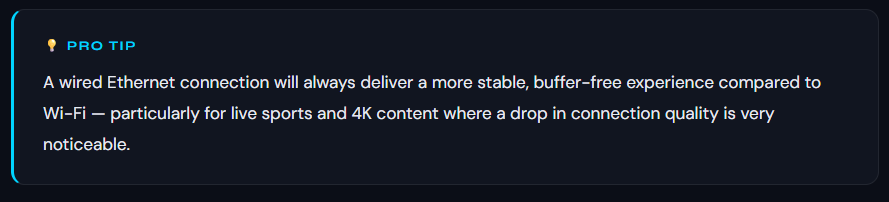
- Use a wired Ethernet connection whenever possible, especially on your main TV.
- If you must use Wi-Fi, position your router as close to your device as possible, or use a Wi-Fi 6 router for denser environments.
- Avoid streaming IPTV and running large downloads simultaneously on the same network.
- Consider a Quality of Service (QoS) setting on your router to prioritize IPTV traffic.
Use a VPN
A VPN (Virtual Private Network) encrypts your internet traffic and can significantly reduce ISP throttling — a common reason for buffering. A VPN also adds a privacy layer to your streaming activity. Choose a VPN provider with fast servers and, ideally, a Smart DNS feature for minimal speed impact.
Manage Your Channel List
- Create a Favourites list in your IPTV app to quickly access your most-watched channels.
- Organize channels into custom groups (Sports, News, Movies, Kids) to streamline browsing.
- Regularly refresh your channel list to ensure the EPG data stays current and accurate.
Adjust Video Buffer Settings
Most IPTV player apps allow you to increase the buffer size, which pre-loads a small amount of video data. Raising the buffer from the default (usually 1–2 seconds) to 5–10 seconds can smooth out minor network hiccups before they become visible on screen.
Common IPTV Problems and How to Fix Them
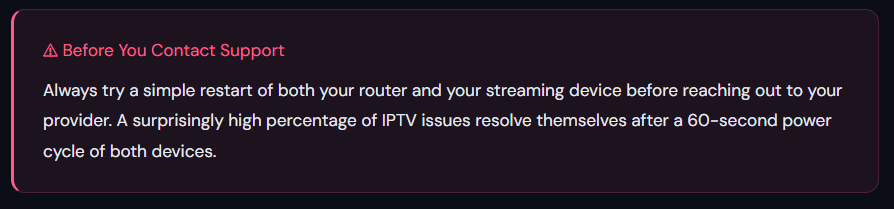
Even with a great provider and good internet, you may occasionally run into issues. Here are the most common problems and their straightforward fixes.
| Problem | Likely Cause | Fix |
| Buffering / Freezing | Slow internet or overloaded server | Check speed, switch server, use Ethernet, try a VPN |
| Channels Not Loading | Expired sub or wrong credentials | Verify subscription status, re-enter credentials |
| EPG Not Showing | EPG URL incorrect or not refreshed | Update EPG URL in settings and force a refresh |
| App Crashing | Outdated app or insufficient device RAM | Update the app, clear cache, or restart device |
| No Audio / Wrong Language | Audio track auto-selected incorrectly | Switch audio track in your player’s playback settings |
| Black Screen | Player incompatibility or DRM issue | Switch player decoder (hardware to software or vice versa) |
Is IPTV Legal?
IPTV as a technology is completely legal. The legality question is always about the content being streamed and whether the provider holds the proper broadcasting licenses for that content.
Legitimate IPTV providers operate with the correct rights to distribute the channels and content they offer. It is always wise to use a provider that is transparent about their services and operates professionally. Choosing an established, reputable service is the simplest way to ensure you are on the right side of things.
Why Choose IPTV Smarter Pros?
At IPTV Smarter Pros, we don’t just hand you a login and leave you to figure things out. We provide a fully managed, end-to-end IPTV experience designed for people who want great TV without the technical headaches. Here’s what sets us apart:
- 20,000+ Live Channels — Sports, news, international, and premium channels in HD and 4K quality, available 24/7.
- Vast VOD Library — Thousands of on-demand movies and TV series updated regularly, including the latest releases.
- 99.9% Uptime Guarantee — Our redundant server infrastructure ensures your stream keeps running, even during peak hours and major live events.
- All Devices Supported — Works seamlessly on Firestick, Android TV, Smart TV, iOS, Android, PC, and MAG boxes.
- Full EPG / Programme Guide — A complete, accurate on-screen TV guide so you always know what’s on and what’s coming up.
- Catch-Up TV — Missed something? Rewind and watch content from the past 7 days on supported channels.
- Multiple Simultaneous Connections — Stream on multiple devices at the same time — perfect for the whole family.
- Dedicated Setup Support — Our team walks you through the entire setup process, step by step, on any device you choose.
- Flexible Plans — Choose from monthly, quarterly, or annual plans with no long-term lock-in contracts.
- Trial Available — Not sure yet? Try our service before you commit so you can experience the quality firsthand.
Ready to upgrade your TV experience? Book a call and our team is on hand to answer your questions, help you choose the right plan, and get you set up in minutes.
Conclusion
IPTV has fundamentally changed how people watch television. With nothing more than an internet connection, a compatible device, and the right subscription, you can access more content than any cable package could ever offer — at a fraction of the price.
To recap: you need a stable internet connection, a supported device, a trustworthy IPTV app, and a reliable subscription. Set it up once, spend five minutes organizing your favourites, and you will never look back at overpriced cable TV again.
The most important decision you will make is choosing the right provider. Reliability, support, and content quality are everything. That is where IPTV Smarter Pros comes in.
FAQs
Can I use IPTV without a smart TV?
Yes. You do not need a smart TV to use IPTV. Any regular TV with an HDMI port can be turned into an IPTV-capable screen by plugging in an Amazon Firestick, a Chromecast with Google TV, or an Android TV box. These devices plug directly into your TV’s HDMI port and power your entire IPTV setup for under $50.
Do I need a VPN to use IPTV?
A VPN is not strictly required to use IPTV, but it is strongly recommended. Some internet service providers (ISPs) throttle streaming traffic, which can cause buffering even when your base internet speed is adequate. A VPN encrypts your traffic so your ISP cannot detect and throttle it. It also adds a layer of privacy to your browsing and streaming activity.
How many devices can I stream on with one IPTV subscription?
This depends entirely on your subscription plan. Most providers offer single-connection plans for one device at a time, and multi-connection plans that allow two, three, or even five simultaneous streams. If multiple people in your household want to watch different things at the same time, make sure to choose a plan that provides enough concurrent connections before you subscribe.
Will IPTV work if my internet goes out?
No. IPTV is entirely internet-dependent. Unlike traditional cable or satellite, which uses a separate physical infrastructure, IPTV requires an active broadband connection to stream any content. If your internet connection drops, all streaming will pause until it is restored. This is one reason a stable, wired connection is always preferred for a primary TV setup.
Can I watch IPTV while traveling abroad?
In most cases, yes. Because IPTV streams over the internet, you can access your subscription from anywhere in the world as long as you have a reliable internet connection. However, some channels may be geo-restricted, meaning they are only licensed for distribution in specific countries. Using a VPN with a server in your home country can often resolve geo-blocking issues when you are abroad.
What internet speed do I need for 4K IPTV streaming?
For a smooth 4K IPTV experience, you generally need a sustained download speed of at least 25 Mbps dedicated to the streaming device. If multiple people in your household are also browsing, gaming, or streaming at the same time, aim for a total household connection of 100 Mbps or more. A wired Ethernet connection is strongly preferable to Wi-Fi for 4K streams, as it eliminates the wireless interference and packet loss that cause sudden quality drops.
Is there a difference between an M3U playlist and Xtream Codes?
Yes, and it is an important distinction. An M3U playlist is a simple text file that contains a list of channel stream links. It is universally supported by almost every IPTV player but has no built-in account management — when your subscription renews, your provider typically sends you an updated M3U file.
Xtream Codes (also called Xtream API) is a login system with a server URL, username, and password. Your app connects to the provider’s server and automatically fetches the latest channel list and EPG every time it loads. This is generally the more convenient option since your channels update automatically without you needing a new file.